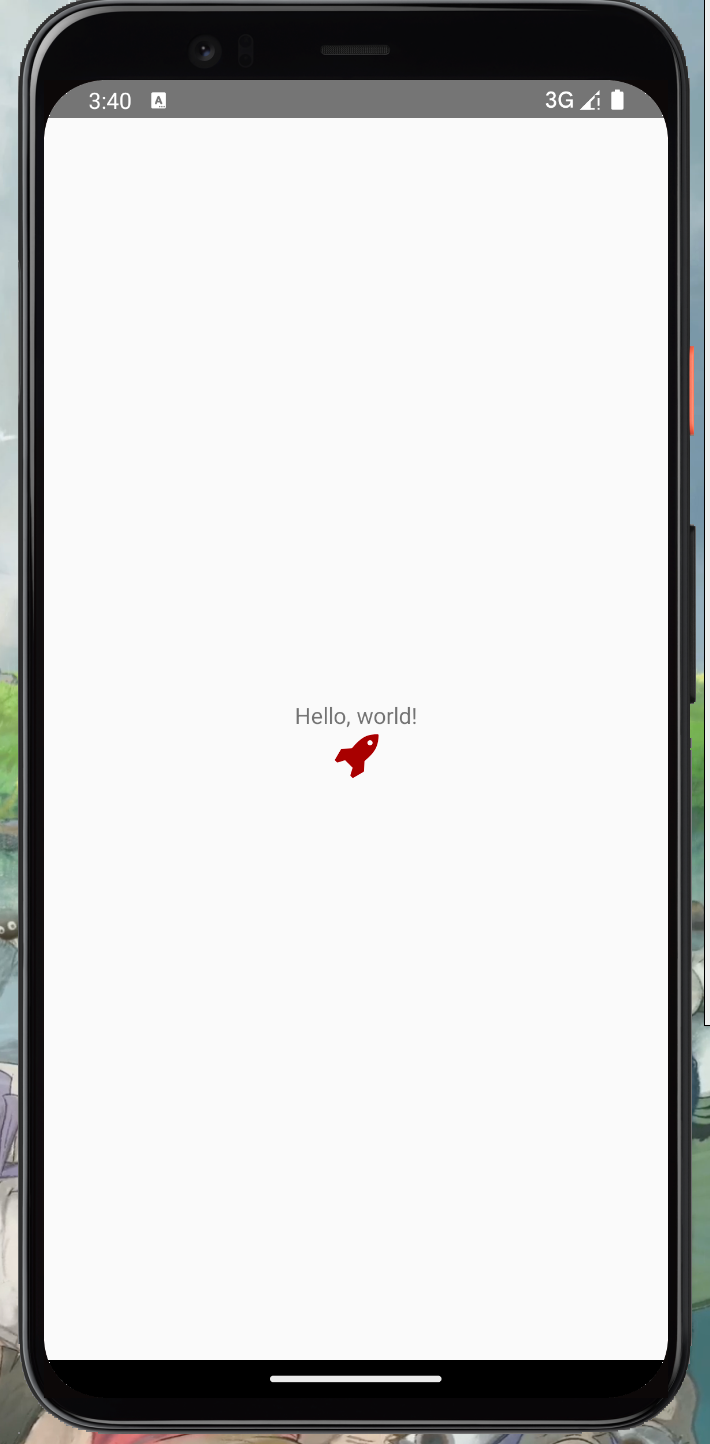
# Simplified Guide: Integrating Icons with react-native-vector-icons in React Native (2024)
The official [documentation](https://github.com/oblador/react-native-vector-icons) from `react-native-vector-icons` is your go-to guide, but things don't always match up exactly as expected — especially on bare React Native projects. This guide is here to fill the gaps.
#### Development environment
- Xcode: 14.3.1
- macOS: Ventura 13.0.1
- React: 18.2.0
- React Native: 0.73.6
- `react-native-vector-icons`: 10.0.3
> In this guide, italic text is quoted directly from the official documentation, and **bold text** is my own commentary.
#### Installation
```bash
npm install --save react-native-vector-icons
```
#### iOS setup
**Open your iOS project in Xcode** by navigating to your project directory and opening the `.xcworkspace` file.
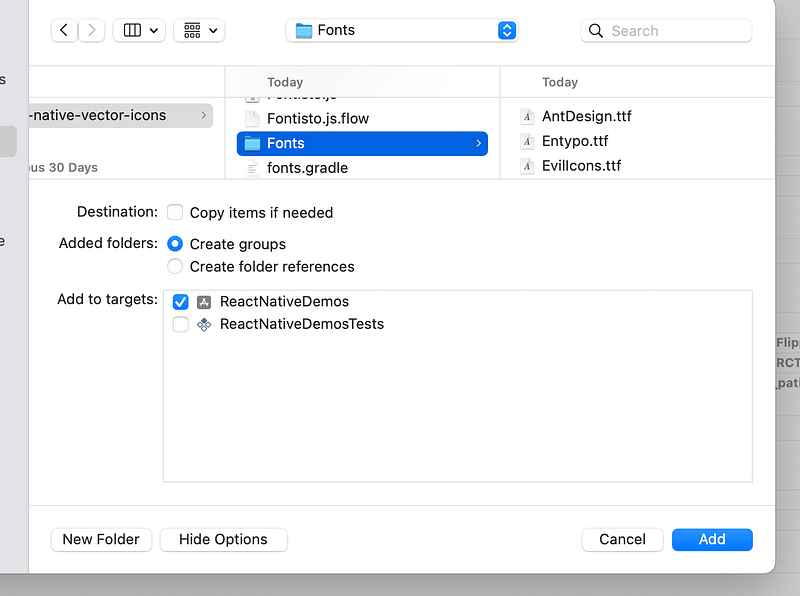
**Copy fonts to your Xcode project:**
*Navigate to `node_modules/react-native-vector-icons` and drag the `Fonts` folder (or specific fonts) into your Xcode project. Make sure your app is checked under "Add to targets," and if adding the whole folder, check "Create groups."*
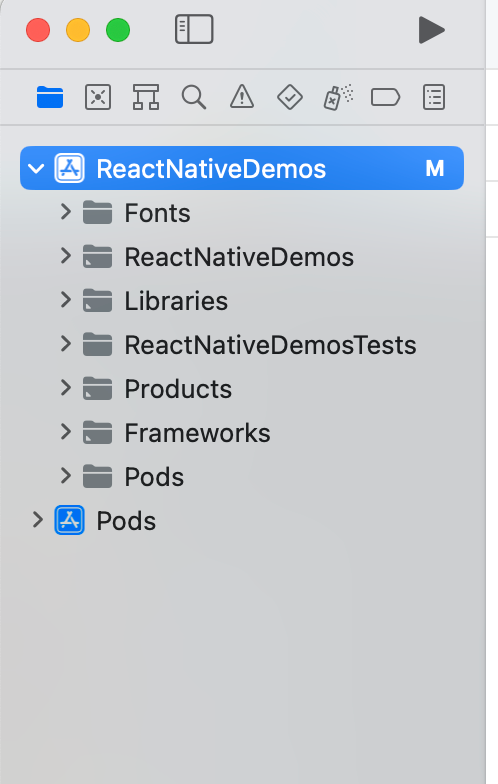
**Your folder structure should look like this:**
**Edit `Info.plist`** and add a property called `Fonts provided by application` (or `UIAppFonts` if Xcode autocomplete isn't working):
*Full list of available fonts to copy into `Info.plist`:*
```xml
UIAppFonts
AntDesign.ttf
Entypo.ttf
EvilIcons.ttf
Feather.ttf
FontAwesome.ttf
FontAwesome5_Brands.ttf
FontAwesome5_Regular.ttf
FontAwesome5_Solid.ttf
FontAwesome6_Brands.ttf
FontAwesome6_Regular.ttf
FontAwesome6_Solid.ttf
Foundation.ttf
Ionicons.ttf
MaterialIcons.ttf
MaterialCommunityIcons.ttf
SimpleLineIcons.ttf
Octicons.ttf
Zocial.ttf
Fontisto.ttf
```
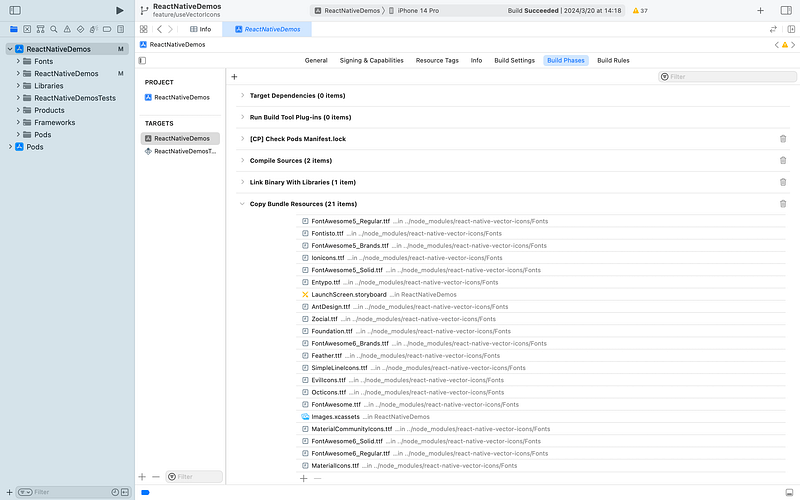
**Check Build Phases:**
*In Xcode, select your project in the navigator, choose your app's target, go to the `Build Phases` tab, and under `Copy Bundle Resources`, add the copied fonts.*
**In some cases the fonts may already be listed under "Copy Bundle Resources" — if so, no action needed.**
**Create `react-native.config.js`:**
*When using auto-linking, all fonts are automatically added to `Build Phases > Copy Pods Resources`, which bloats your bundle. To prevent this, create a `react-native.config.js` file at the root of your project:*
**If the file doesn't exist yet, create it and set the iOS configuration to null.**
```javascript
module.exports = {
dependencies: {
'react-native-vector-icons': {
platforms: {
ios: null,
},
},
},
};
```
> **Note:** If you encounter a "Multiple commands produce…" error after following the official docs, remove any duplicate font references under "Copy Bundle Resources". See [this issue thread](https://github.com/oblador/react-native-vector-icons/issues/1074) for the fix with the most upvotes.
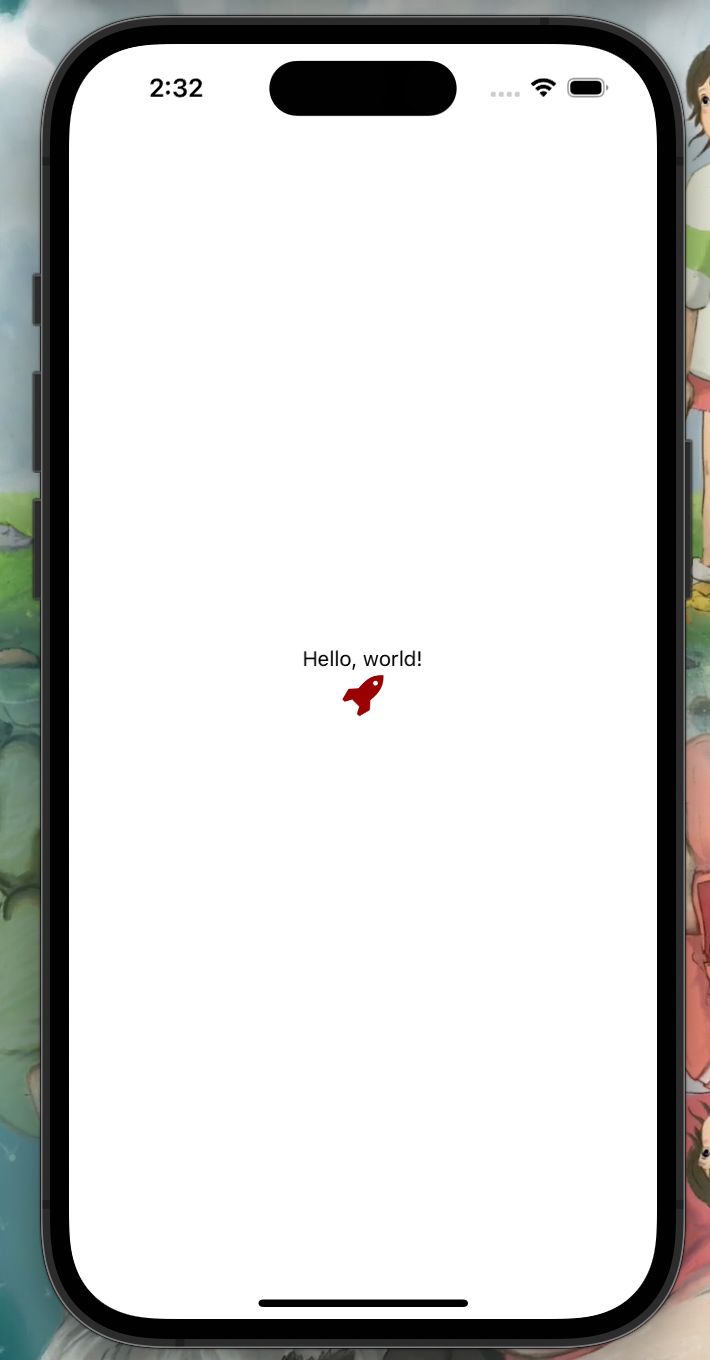
Rebuild your project — you're ready to use vector icons.
#### Android setup
**Edit `android/app/build.gradle`** (not `android/build.gradle`) and add:
```gradle
apply from: file("../../node_modules/react-native-vector-icons/fonts.gradle")
```
**Copy fonts to your Android project:**
*Navigate to `android/app/src/main/assets/fonts` and paste the `Fonts` folder there.*
**If the `assets` folder doesn't exist, create it — use lowercase for all folder names.**